
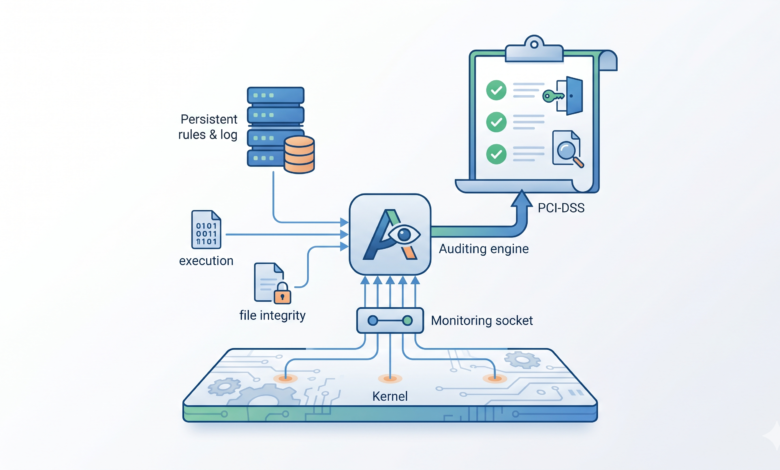
The moment I realized that we had been “flying blind” actually happened just after I received an admin ping from a junior admin about unusual CPU usage on one of our production web app servers. There was no other indication of an issue such as anomalous network traffic or a suspicious process running in “top”, all that was there were a number of ‘suspicious’ shell commands that were buried in Apache error logs. That turned out to be the result of a remote code execution vulnerability in one of our file upload plugins. We ended up discovering it accidentally, not intentionally. To make matters worse, I had never deployed kernel-level auditing so we weren’t able to analyze what had actually happened. The entire Linux audit framework was just sitting there and was never used. This experience prompted a complete re-evaluation of my approach to monitoring system calls—and I have deployed excess auditing rules to every production server since.
Quick Summary
- Configure Linux auditd rules to monitor using persistent rulesets
- Monitor ‘execve’, ‘openat’ and other system calls using auditctl
- Use audit rules to trap file integrity monitoring in Linux using simple watch rules.
- Map audit keys to PCI-DSS requirements for Linux logging.
- Prevent event storms and avoid the dreaded ‘-e 2’ immutability locks.
Understanding the Linux Audit Framework Architecture
Before we dive into a configuration file, it’s very important to understand the flow of data within the Linux audit framework. Many people believe that auditd is simply another log shipping utility; however, it sits at the kernel level and streams structured event records to userspace over a netlink socket, therefore making the design of the audit framework fundamentally different than that of traditional userspace integration for log shipping.
The Audit Daemon and Netlink Socket
The kernel’s audit subsystem can be accessed by the audit daemon (auditd) via a netlink socket. When an event occurs that has been captured, such as an execve system call, the kernel assembles the process UID, executable’s path, outcome of the action, and timestamp into a message in a netlink packet and then sends it through that netlink socket to an instance of the audit daemon for writing to disk (/var/log/audit/audit.log). This logging is done purely at the kernel level (thus providing a reliable method of executing independent from any outside influence such as userspace libraries) and hence it is the most trusted source of auditing evidence by compliance authorities.
User-Space Utilities and Dispatchers
Once a message has been logged to disk, all the fun begins. With the log file sitting there as a set of binary files, tools such as ausearch or aureport are utilised to parse these types of logs. If you are performing more serious types of log analysis and management with log servers or SIEM systems, you have to use a dispatch utility, such as audispd, to send logs to a syslog or SIEM server. I am focusing on developing and testing local audit logs as all additional functionality is dependent on the viability of local logs.
Prerequisites for Kernel Level Auditing
There are two prerequisites that must be met prior to writing an audit rule: 1) The kernel must support the audit subsystem and 2) the audit daemon must be running. Very often, I see people spend hours troubleshooting a silent rule file due to the fact they didn’t realise that auditd had been masked by a prior hardening script.
Verifying Kernel Config and Daemon Status
The first task is to confirm that the kernel was compiled with both CONFIG_AUDIT and CONFIG_AUDITSYSCALL. On nearly all modern distributions of Linux, this should be assumed to be present; however, it is still a good practise to confirm.
$ grep CONFIG_AUDIT /boot/config-$(uname -r)
CONFIG_AUDIT=y
CONFIG_AUDITSYSCALL=y
CONFIG_AUDIT_WATCH=y
CONFIG_AUDIT_TREE=y
As long as both CONFIG_AUDIT and CONFIG_AUDIT_SYSCALL return a value of either “y” or “m”, you can guarantee that the kernel has been configured correctly for auditing purposes. The next step is to check if the audit daemon is running.Assuming you have the daemons running.
$ systemctl status auditd
● auditd.service - Security Auditing Service
   Loaded: loaded (/usr/lib/systemd/system/auditd.service; enabled; vendor preset: enabled)
   Active: active (running) since Wed 2026-04-29 09:14:23 UTC; 3 days ago
     Docs: man:auditd(8)
           https://github.com/linux-audit/audit-documentation/wiki
 Main PID: 1124 (auditd)
    Tasks: 2 (limit: 23198)
   Memory: 5.2M
   CGroup: /system.slice/auditd.service
           └─1124 /sbin/auditd

$ sudo auditctl -s
AUDIT_STATUS: enabled=1 flag=1 pid=1124 rate_limit=0 backlog_limit=8192 lost=0 backlog=0
The line “enabled=1” is the major point of consideration. If it is zero, it indicates your rules file might be empty or the daemon is running “audit=0” from the kernel command line. I have done this multiple times.
Allocating Sufficient Disk Space for Logs
By default, logs will end up filling up the /var/log/audit directory quickly when you are tracking syscalls (execve, etc.). If you have a moderately busy web server, it is very possible to generate over 200 MB of audit logs each hour from the rules that are too broad. I set the max_log_file and max_log_file_action in the /etc/audit/auditd.conf to have aggressive rotation, and I have always mounted /var/log/audit on a separate partition (not mounted in the root filesystem) so that a log storm will not fill up your entire root filesystem and take the machine down.
How to Configure Linux Auditd Rules Monitoring
This is the point where the rubber meets the road. What the rule(s) you write will define what the kernel sends to you thus one badly scoped rule can turn your server into a space heater.
Defining Persistent Rules in /etc/audit/rules.d
The directory /etc/audit/rules.d stores persistent rule files. Whenever you start the service or run augenrules, these files get merged together into a single /etc/audit/audit.rules file. I place all my custom rules into one file (10-custom.rules) so they are all in one place. Here is an example of an empty file illustrating the structure.
$ cat /etc/audit/rules.d/10-custom.rules
# Delete any existing rules
-D

# Set buffer size
-b 8192

# Fail silently when operations require privileges not available
-f 1

# Monitor executions
-a always,exit -F arch=b64 -S execve -k sys_exec
-a always,exit -F arch=b32 -S execve -k sys_exec

# Watch sensitive files
-w /etc/passwd -p wa -k passwd_changes
-w /etc/shadow -p wa -k shadow_changes
The -D option at the top removes all previous rules so you have a clear starting point and the -b option sets the backlog. Then I will define syscall rules and filesystem watches.Every audit rule created using ANY AUDIT RULE Text Page Rule Template, has a search key that acts like a logical grouping for the audit rule; the reason for its importance is discussed later in the PCI rules section. After making changes to the audit rule, load the audit rule into the system by executing “sudo augenrules –load”, and then restart the audit daemon using the following command:
Tracking Executions with auditctl system calls
To test a given audit rule before deploying it as a permanent storage location (like with an audit rule), you can directly use the command line to call auditctl. The following command is my standard method of tracking every execve system call executed on a 64-bit architecture.
$ sudo auditctl -a always,exit -F arch=b64 -S execve -k sys_exec
When a process finishes processing and completes its execution, the kernel creates an audit event for the associated execve system call defined by the sys_exec tag as requested. The list of items tagged with always,exit contain both the execve system call as executed and its completed returned exit code. If you want to check if the new rule is active immediately after loading the rule, you can use the example below to do so.
$ sudo auditctl -l
-a always,exit -F arch=b64 -S execve -F key=sys_exec
After loading your new rule, open a terminal and start executing some ls commands followed by streaming the audit log to view the audit records produced as the result of executing the ls commands. In order to see the audit records for the execve system calls you have executed, run the following command: ausearch -k sys_exec. This provides an immediate feedback mechanism to alleviate any concern regarding whether or not the rule actually performed as expected.
Setting Up File Integrity Monitoring Linux
For some critical files on a Linux environment, you do not own a complete monitoring solution like Tripwire. Instead, you can use the kernel-distributed AuditD watch rules to create Linux file integrity monitoring as a built-in feature of the kernel.
$ sudo auditctl -w /etc/passwd -p wa -k passwd_changes
The “-w” option indicates that the audit will watch the specified file or folder for any kind of modification and the “-p wa” options state which specific write operations will be tracked by the audit event. Additionally, if you desire additional audit log detail, you may add a read option “-r” to your audit rule. However, adding the read option may lead to excessive log volume in highly utilized systems.
Lastly, when creating the watch rule, I also created an additional watch rule for /etc/shadow which I also labeled with the key passwd_changes and called it good for now.If you use log forwarding along with file integrity monitoring in PCI environments, then using log forwarding will meet the requirement for file integrity monitoring.
Why I Ultimately Stuck With Native Auditd Over Other Options
I have tested the experimental options of fanotify, inotify, and eBPF hooks for file monitoring. Each time I used these rather than auditd, I returned to auditd. The reason is, the event types created from the syscalls and the file watch rules can be mapped together into compliance controls; all of the compliance controls available can be easily mapped back to auditd’s output. eBPF is a fantastic technology, but it requires a newer kernel and there is not a lot of supporting tools at this time. Fanotify may miss particular kernel-mediated actions, so it requires additional work by the end user. Auditd comes installed with all LTS kernels, and is specified directly in CIS benchmark and PCI DSS guidance documents for compliance. Therefore, if an auditor requests proof, I give them the output of an aureport command, and the conversation is over. I do not utilize any third-party tools to justify the use of auditd.
Achieving PCI-DSS Linux Logging Compliance
Within the PCI DSS, compliance requirements 10.2 and 11.5 directly cover monitoring of access to system components, as well as the integrity of those components. If you have set up your rules appropriately, auditd does most of these tasks for you; however, you have to prove that it is accomplishing them, rather than just saying it.
Mapping Audit Keys to Compliance Requirements
This is where the -k options become extremely useful. I assign an individual audit key for each PCI compliance-related rule. For example, I use -k pci_fileint for file integrity watches, -k pci_exec for monitoring the execution of commands, and -k pci_priv for monitoring the use of privileged commands (i.e. sudo). When auditors request compliance evidence, rather than searching through all of my log files, I simply run a targeted ausearch command with -k pci_fileint and run an aureport command with -k pci_fileint.
Extracting Evidence with ausearch aureport examples
If the auditor is looking to see every password file that has changed during the last week. I would execute the following command.
$ sudo ausearch -k passwd_changes --start this-week | sudo aureport -f -i

File Report
===============================================
# date       time  file            syscall success exe         auid event
===============================================
1. 04/27/2026 03:14:01 /etc/passwd    openat   yes    /usr/sbin/useradd root 8472
2. 04/28/2026 11:33:22 /etc/passwd    chmod    yes    /bin/chmod       root 9123
3. 04/29/2026 22:08:45 /etc/passwd    openat   no     /usr/bin/vim     bob  10012
The -f switch produces a file based report; the -i option converts User ID’s into real names. The auid column represents the UID of the user’s originally logged-in session and is retained after executing su or sudo from root. This is exactly what an auditor is looking for: to identify who performed each action, not the account used to execute it on behalf of root. By automating daily reporting by e-mail with this command, you are able to be audit-ready without lifting a finger.
Troubleshooting Event Storms and Immutable Rule Failures
Auditd can cause big problems if you take on too many syscall rules or don’t know how immutability works, which is what I have experienced personally.
Mitigating CPU Spikes from Broad Syscall Rules
A common mistake when auditing is to use -a always,exit -S all, or tracking high-frequency syscalls such as getpid and futex without any exclusions. On one developer server I inherited there were rule sets which generated 50,000 events per second causing auditd to use 80% of a CPU core. The solution is to take a surgical approach in creating the scope of your rule set.
To determine the cause of your CPU usage, create a quick process snapshot:
$ ps aux --sort=-%cpu | head -3
USER       PID %CPU %MEM    VSZ   RSS TTY      STAT START   TIME COMMAND
root      1124 87.3  0.5 364012 42872 ?        Ssl  Apr29 212:30 /sbin/auditd
...
If you see that auditd is the highest CPU user, obtain a list of active rules and stop tracking any rules for ‘common’ syscalls that affect all processes. Rather than tracking ‘openat’ for every directory level, monitor for a particular sensitive directory level.In terms of security, you might only want to include a few system calls: execve, connect, bind, chmod, chown, mount, and kill. By not including other system calls in your auditing configuration file, you are saving CPU cycles on those calls.
Recovering from the -e 2 Immutability Lock
When you create your rules in auditd, using the -e 2 flag to create an immutable (i.e., cannot change) configuration file (in accordance with many compliance requirements), can lead you to make a configuration that you do not want to be locked down. It requires that you reboot your Linux server to make changes. The documentation for auditd indicates that once the immutability flag is used, the user must reboot to make any changes. However, if a user has included the audit=1 parameter in the kernel command line, then it is possible to soften this blow since it allows you to have the kernel begin auditing during the boot process and check your rule set prior to the imposition of the immutability lock on your system. In some cases, if a user has a syntax error in their rules file, their system may not boot with any rules; however, if this is the case, at least it is possible to correct this error. I always include audit=1 and audit_backlog_limit=8192 in the /etc/default/grub file, and then re-generate my configuration. If a user has already secured a running system and needs to recover from it without rebooting, due to the way design works, there is no way to do this, which is why it is advisable to test rule sets in a staging server prior to rolling them out into production.
Frequently Asked Questions
Does auditd cause significant performance overhead on production servers?
The amount of performance overhead to production servers that auditd will create depends on the user’s specific rule set. If the user has defined very specific rules to capture only the system calls that the user is interested in, along with creating a few file watches, the performance overhead should not be more than 2% or less CPU on most web workloads. However, if the user sets the success field to true for every open call on a heavily loaded NFS file system, then the user will begin to feel the effects. The best way to approach this is to begin with minimal rules, use the perf and top commands to monitor your CPU utilization as you add more rules, and continue to monitor until you have achieved your desired results.
How do I forward auditd logs to a centralized SIEM?
The best way to achieve this is to utilize the audisp-remote plugin or to configure the audispd daemon to forward auditd events to syslog, and then configure the syslog agent to forward them to the SIEM. The best way to accomplish this is to enable the audisp-syslog plugin, which causes auditd events to be sent to /var/log/messages in a structured format. After they are sent to syslog, it is necessary to use either Filebeat or rsyslog to forward them to your SIEM. Keep in mind that syslog has a limit on the length of a message, so it is possible that a long audit record could be truncated unless the max_syslog_loglevel parameter has been increased.
Why are my auditctl rules disappearing after a system reboot?
The reason that your auditctl rules will be missing after a restart of the audit daemon is because the auditctl commands store the rules in the system memory only, and they will be lost when the audit daemon is restarted or the system is rebooted. If the user wants their rules to persist after a reboot of the Linux operating system, they must create a .rules file containing the audit rules in the /etc/audit/rules.d directory and run the augenrules –load command. When this is completed, the user will be able to confirm their rules are persisted by using the auditctl -l command after the reboot.
It is very painful to realize that a live compromise occurred and the auditd daemon was not enabled when it was supposed to have been. By building a solid ruleset and using compliance standards to validate whether or not you have a good ruleset, you can turn this blind spot into one of your best monitoring layers. If you are just getting started, please get a copy of the 10-custom.rules skeleton file posted above, fill in the compliance keys that you want to monitor, and then wait a day before calling it production-ready.
